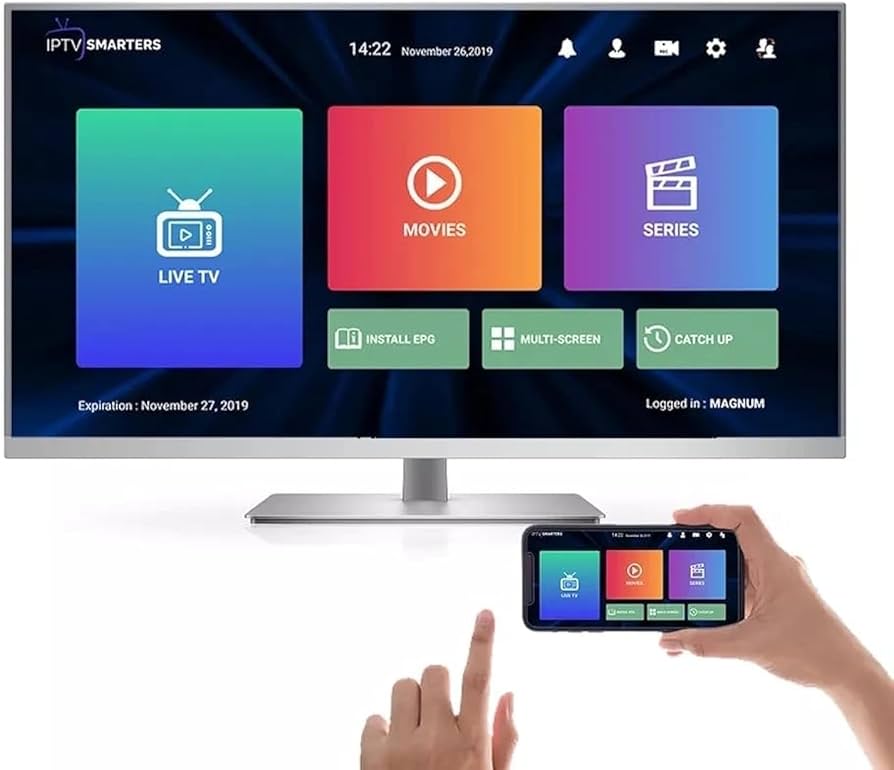
IPTV Smarters Pro is one of the most popular and user-friendly applications for watching IPTV content on a wide range of devices. Whether you’re using a Firestick, Android TV, iOS, or a Smart TV, this powerful player lets you stream your favorite live TV, movies, and series with ease.
This definitive 2026 guide will walk you through the installation process for every major device, step-by-step. Let’s get your entertainment setup!
Before You Begin: What You’ll Need
A Valid IPTV Subscription: IPTV Smarters Pro is a player, not a service. You must have an active subscription from an IPTV provider, which will give you: Click here To Buy Now
Portal URL: The most critical piece of information.
Username
Password
Your Target Device: Firestick, Android Box, iPhone, etc.
A Stable Internet Connection.
Installation Guides by Device
1. How to Install IPTV Smarter Pro on Amazon Firestick / Fire TV
The process on Firestick requires sideloading since the app isn’t available in the Amazon Appstore.
Step 1: Enable Apps from Unknown Sources
From the home screen, go to Settings > My Fire TV > Developer Options.
Turn ON the toggle for Apps from Unknown Sources. Confirm if prompted.
Step 2: Install the Downloader App
Use the search function to find and install the Downloader app from the Amazon Appstore.
Step 3: Download and Install IPTV Smarters Pro
Open the Downloader app. If it asks for permission, grant it.
In the URL field, enter the following official download link: https://www.iptvsmarters.com/smarters.apk or Code 272483
Click Go. The app will begin downloading.
Once downloaded, the installation prompt will appear. Click Install.
After installation, click Done. You can now delete the APK file to save space.
Step 4: Open and Configure
Go to Your Apps & Channels, find IPTV Smarters Pro, and launch it.
Accept the Terms & Conditions and proceed to log in with your IPTV subscription details.
2. How to Install IPTV Smarter Pro on Android TV / Android Box
This is the most straightforward installation process.
Step 1: Access the Google Play Store
Open the Google Play Store on your Android TV device.
Step 2: Search and Install
Use the search bar and type in “IPTV Smarters Pro”.
The official app, developed by WHMCS Smarters, will appear. Select it and click Install.
Step 3: Launch and Log In
Once installed, open the app from your app drawer.
Accept the terms and enter your Portal URL, Username, and Password to start using it.
3. How to Install on iOS / iPhone / iPad
Due to Apple’s App Store policies, the official IPTV Smarters Pro app is not always available. The recommended alternative is IPTV Smarters Player, which is the same app but distributed under a different name to comply with App Store guidelines.
Step 1: Download from the App Store
Open the App Store on your iOS device.
Search for “IPTV Smarters Player”. The developer is WHMCS Smarters.
Download and install the app.
Step 2: Configure Your Service
Open the app. You will see a login screen.
Select “Login with Xtream Codes API”.
Enter the details provided by your IPTV service: Username, Password, and Portal URL.
Click “Add User” and you’re ready to go.
⚠️ Important Note for iOS Users: The app’s availability can change. If it’s not on the App Store, you may need to use a third-party service like Signulous to sideload the IPA file, but this requires a paid developer account for ease of use.
Navigate to the download section and select the Windows version.
Step 2: Install the Application
Run the downloaded .exe file.
Follow the on-screen installation wizard. It’s a standard Windows software installation.
Step 3: Set Up Your Account
Launch IPTV Smarters Pro from your desktop.
The login screen will appear. Enter your Xtream Codes API details (Username, Password, URL) provided by your service.
5. How to Install on Smart TVs (Samsung & LG)
Most modern Smart TVs use either Tizen (Samsung) or webOS (LG). The official IPTV Smarters Pro app is available on these platforms.
For Samsung Tizen TVs:
Press the Smart Hub button on your remote.
Go to Apps and search for “IPTV Smarters Pro”.
Select and install the app.
For LG webOS TVs:
Press the Home button on your remote.
Navigate to the LG Content Store.
Search for “IPTV Smarters Pro” and install it.
Configuration:
Open the app and you will be greeted with the familiar login screen. Input your subscription credentials to load your content.
How to Log In and Use IPTV Smarters Pro
Regardless of your device, the login process is almost identical:
Open the IPTV Smarters Pro app.
You will typically see two login options. Choose “Login with Xtream Codes API” (this is the most common).
Carefully enter the following details from your IPTV provider:
URL: Your service’s portal/server URL.
Username: Your subscription username.
Password: Your subscription password.
Click “Add User” or “Login”.
The app will load your playlist. You can now navigate through Live TV, Movies, Series, and TV Catch-Up.
Troubleshooting Common Issues
“Invalid Login” Error: Double-check your credentials, especially the URL. Ensure there are no typos or extra spaces.
App Crashes or Freezes: Force close the app and reopen it. If the problem persists, clear the app’s cache (on Android/Firestick) or reinstall it.
Buffering: This is usually related to your internet speed or your IPTV provider’s server load. Check your connection and contact your provider if it continues.
VOD (Movies/Series) Not Loading: Ensure your subscription includes VOD access. Sometimes, restarting the app can resolve this.
Final Thoughts
Installing IPTV Smarters Pro is a simple process once you know the steps for your specific device. By following this 2026 guide, you can transform any compatible device into a powerful entertainment hub.
Contains information related to marketing campaigns of the user. These are shared with Google AdWords / Google Ads when the Google Ads and Google Analytics accounts are linked together.
90 days
__utma
ID used to identify users and sessions
2 years after last activity
__utmt
Used to monitor number of Google Analytics server requests
10 minutes
__utmb
Used to distinguish new sessions and visits. This cookie is set when the GA.js javascript library is loaded and there is no existing __utmb cookie. The cookie is updated every time data is sent to the Google Analytics server.
30 minutes after last activity
__utmc
Used only with old Urchin versions of Google Analytics and not with GA.js. Was used to distinguish between new sessions and visits at the end of a session.
End of session (browser)
__utmz
Contains information about the traffic source or campaign that directed user to the website. The cookie is set when the GA.js javascript is loaded and updated when data is sent to the Google Anaytics server
6 months after last activity
__utmv
Contains custom information set by the web developer via the _setCustomVar method in Google Analytics. This cookie is updated every time new data is sent to the Google Analytics server.
2 years after last activity
__utmx
Used to determine whether a user is included in an A / B or Multivariate test.
18 months
_ga
ID used to identify users
2 years
_gali
Used by Google Analytics to determine which links on a page are being clicked
30 seconds
_ga_
ID used to identify users
2 years
_gid
ID used to identify users for 24 hours after last activity
24 hours
_gat
Used to monitor number of Google Analytics server requests when using Google Tag Manager
1 minute
Marketing cookies are used to follow visitors to websites. The intention is to show ads that are relevant and engaging to the individual user.
Google Maps is a web mapping service providing satellite imagery, real-time navigation, and location-based information.



 Written by James