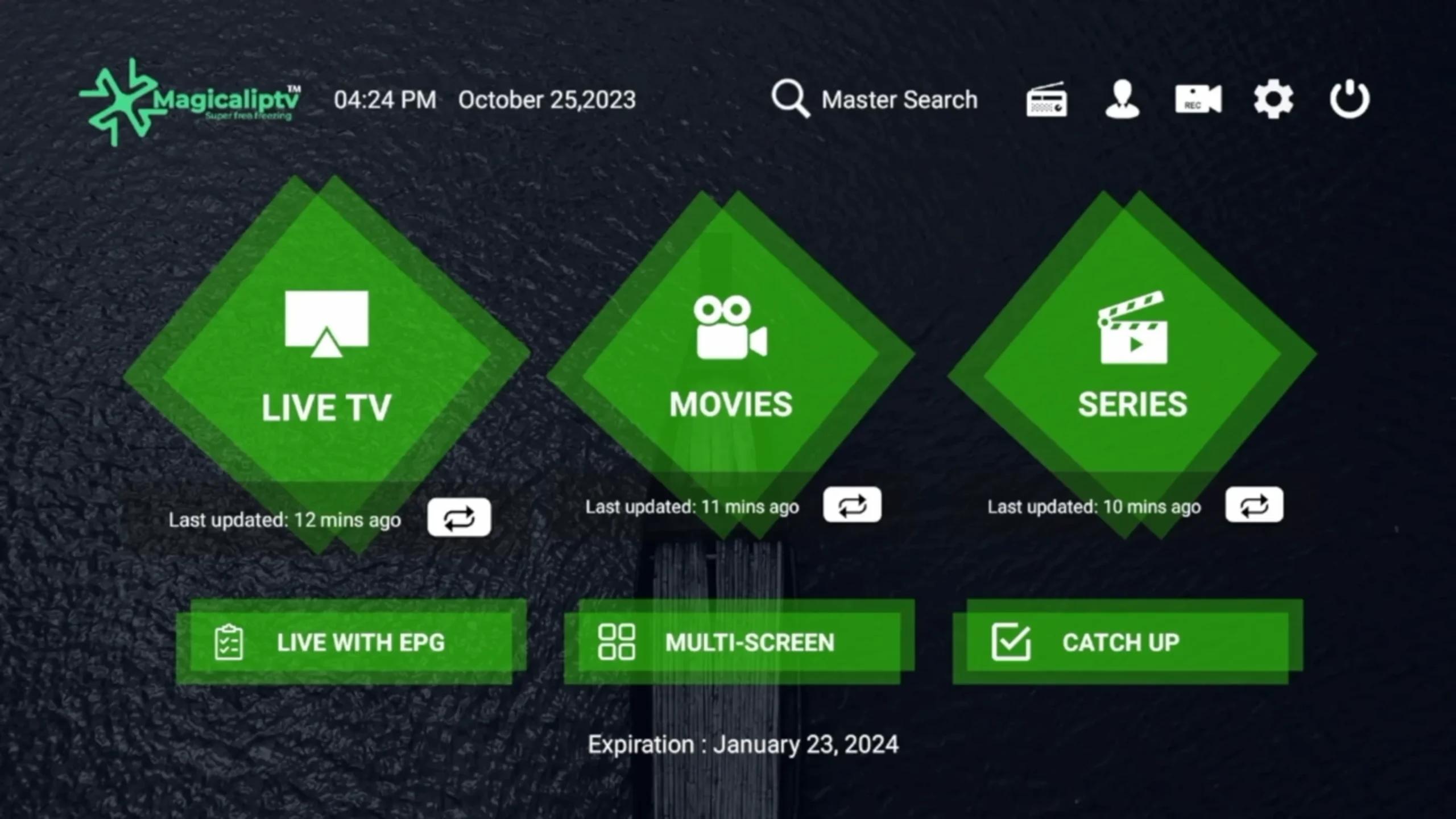
How To Install Magical IPTV App on Any Device 2026
This guide provides straightforward instructions for installing the Magical IPTV application across various devices. IPTV (Internet Protocol Television) allows streaming of television content through internet networks, offering an alternative to traditional cable or satellite services. Get Service For Magical IPTV App Click Here
Our service is optimized and works perfectly with the official Magical IPTV app for a seamless viewing experience.
How to Install Magical IPTV on Firestick
Step 1: Enable Unknown Sources
Go to Settings → My Fire TV → Developer Options
Turn ON “Apps from Unknown Sources”
Step 2: Install Downloader App
Search for “Downloader” in the Amazon App Store
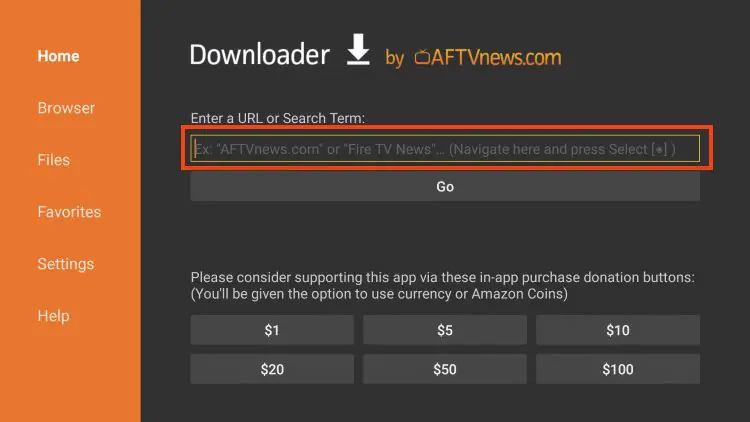
Install and open the Downloader app
Step 3: Download Magical IPTV
In Downloader, enter the Code: 7167138
Download the APK file when prompted
Step 4: Install the Application
Open the downloaded file
Select “Install” → “Open” when complete
The app will appear in your “Your Apps & Games” section
How to Install Magical IPTV on Smart LED TV
For Android-based Smart TVs:
Go to Settings → Security → Enable “Unknown Sources”
Installing Magical IPTV varies significantly by device type, with Android-based platforms offering the simplest installation process. Firestick and Android devices allow direct APK installation, while Smart TVs may require activation through MAC addresses. Windows and Mac users typically need Android emulators to run the application.
Contains information related to marketing campaigns of the user. These are shared with Google AdWords / Google Ads when the Google Ads and Google Analytics accounts are linked together.
90 days
__utma
ID used to identify users and sessions
2 years after last activity
__utmt
Used to monitor number of Google Analytics server requests
10 minutes
__utmb
Used to distinguish new sessions and visits. This cookie is set when the GA.js javascript library is loaded and there is no existing __utmb cookie. The cookie is updated every time data is sent to the Google Analytics server.
30 minutes after last activity
__utmc
Used only with old Urchin versions of Google Analytics and not with GA.js. Was used to distinguish between new sessions and visits at the end of a session.
End of session (browser)
__utmz
Contains information about the traffic source or campaign that directed user to the website. The cookie is set when the GA.js javascript is loaded and updated when data is sent to the Google Anaytics server
6 months after last activity
__utmv
Contains custom information set by the web developer via the _setCustomVar method in Google Analytics. This cookie is updated every time new data is sent to the Google Analytics server.
2 years after last activity
__utmx
Used to determine whether a user is included in an A / B or Multivariate test.
18 months
_ga
ID used to identify users
2 years
_gali
Used by Google Analytics to determine which links on a page are being clicked
30 seconds
_ga_
ID used to identify users
2 years
_gid
ID used to identify users for 24 hours after last activity
24 hours
_gat
Used to monitor number of Google Analytics server requests when using Google Tag Manager
1 minute
Marketing cookies are used to follow visitors to websites. The intention is to show ads that are relevant and engaging to the individual user.
Google Maps is a web mapping service providing satellite imagery, real-time navigation, and location-based information.



 Written by James