This step-by-step guide will walk you through the entire process of installing and configuring IPTV Smarters Pro on your Android phone in 2026.
IPTV Smarters Pro is one of the most popular and easy-to-use apps that can be used to watch IPTV on any device, and it is perfect for Android phones. The user-friendly interface is mobile-friendly, making it easy to watch your favorite live TV channels in the go.
Important Disclaimer: The legality of an IPTV service depends on the content it provides and its licensing. You are responsible for ensuring that the service you use is legitimate and that you have the rights to stream the content in your region. Using a VPN is highly recommended for privacy and security.
What You’ll Need Before You Start
An Android Phone (running Android 5.0 or higher).
A Stable Internet Connection (Wi-Fi or Mobile Data).
An Active IPTV Subscription: Your provider must give you either an M3U Playlist URL or, more commonly, Xtream Codes API login details (Username, Password, and Server URL).
A VPN (Optional but Recommended): Such as NordVPN or ExpressVPN, to protect your privacy.
Step 1: Download and Install IPTV Smarters Pro
The first step is to get the official app onto your phone. You have two safe methods to do this:
Method 1: Install from Google Play Store (Recommended)
Open the Google Play Store on your Android phone.
Tap the search bar at the top and type “IPTV Smarters Pro”.
Look for the app published by “WHMCS Smarters” – this is the official developer.
Tap Install and wait for the download and installation to complete.
Method 2: Direct Download from Official Website
If the app is unavailable in your region on the Play Store, you can download it directly from the official website.
Open your phone’s web browser (Chrome, Samsung Internet, etc.).
The APK file will begin downloading automatically.
Once downloaded, tap on the file in your notification panel or “Downloads” folder.
If this is your first time installing an app outside the Play Store, your phone will ask for permission. Tap Settings and enable “Allow from this source”.
Go back and tap Install again. The app will install within seconds.
Security Note: Downloading the APK directly from the official website (iptvsmarters.com) is safe. Avoid third-party APK sites to prevent installing modified or malicious software.
Step 2: Launch the App and Accept the Terms
Open the IPTV Smarters Pro app from your app drawer.
You will be presented with a welcome screen and its Terms of Use. Read through and tap Accept & Continue to proceed.
Step 3: Add Your IPTV Subscription Details
This is the core setup where you link your subscription to the app.
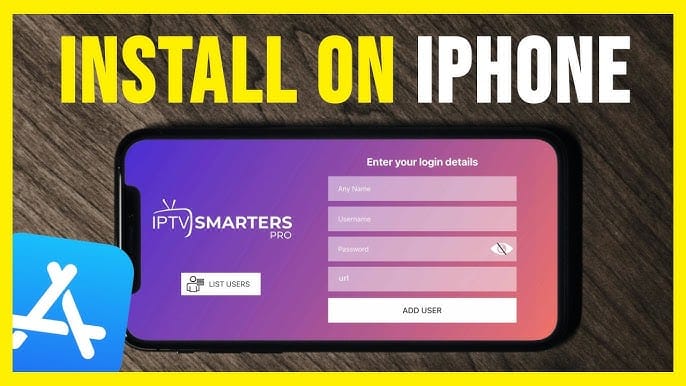
Click The Xtreme IPTV API on the Given Options to Open The login interface
Carefully enter the information provided by your IPTV service:
Playlist : You Can Write any Playlist name you want
Username: Your assigned username.
Password: Your assigned password.
Server URL: Enter the portal URL provided by your service (e.g., http://yourprovider-host.com or https://yourprovider-host.com).
Double-check for any typos, as they are the most common cause of login failures. Then, tap the Add User button.
Alternative: If You Have an M3U URL
If your provider only gave you a long M3U link, the process is slightly different.
On the login screen, look for the text that says “Add Xtream Codes API / M3U URL” and tap on it.
A menu will pop up. Select “Load Your Playlist Or File/URL”.
Then, choose “Load from URL (M3U)”.
Paste your full M3U URL into the field, give the playlist a name (e.g., “My Subscription”), and tap Add User.
Step 4: Navigate the App and Start Watching
After successfully adding your account, the app will fetch the data from your provider.
You will be taken to the main menu of IPTV Smarters Pro. Here you will see several panels, typically including:
Live TV: For all your live channels, organized into categories (Entertainment, Sports, News, etc.).
Movies: A dedicated section for on-demand movies from your service.
Series: A dedicated section for TV series.
Catch-Up: If your provider supports it, this allows you to watch shows that have already aired.
Multi-Screen: Allows you to watch multiple channels at once (if supported).
To watch Live TV:
Tap on the Live TV panel.
Select a category (e.g., “Sports”).
Scroll through the list of channels and tap on one to start streaming.
The channel will load in the built-in video player.
Pro Tips for a Better Experience on Mobile
Use the Electronic Program Guide (EPG): Tap the “TV Guide” or “EPG” button to see a visual timeline of what’s currently playing and what’s coming up on all channels.
Add Favorites: Long-press on a channel or movie and select “Add to Favorite” for quick access later. You can find your favorites in a dedicated “Favorites” section.
Adjust the Video Player: If you experience playback issues, go to Settings > Player Settings and try switching between the built-in ExoPlayer and other available options like VLC or MX Player.
Parental Controls: You can set a PIN in the settings to lock the app or restrict specific content.
Troubleshooting Common Issues
“Invalid Credentials” or “Login Failed”:
Solution: Double-check your username, password, and server URL for typos. They are case-sensitive. Confirm with your provider that your subscription is active.
Channels Are Buffering:
Solution: Check your internet speed. Try switching from mobile data to a stable Wi-Fi network. If you’re using a VPN, try connecting to a different server. The issue could also be with your provider’s server load.
“No Data Found” or Categories Are Empty:
Solution: This usually means your subscription has expired, or the M3U/XC URL is incorrect. Contact your IPTV provider for support.
Final Thoughts
Installing IPTV on your android phone using IPTV smarter pro is a fast and easy procedure that will open the world of live television to you in your pocket. These steps, which include downloading the official application, properly entering your user and password, and getting acquainted with the design, will see you streaming in a matter of a few minutes.
Contains information related to marketing campaigns of the user. These are shared with Google AdWords / Google Ads when the Google Ads and Google Analytics accounts are linked together.
90 days
__utma
ID used to identify users and sessions
2 years after last activity
__utmt
Used to monitor number of Google Analytics server requests
10 minutes
__utmb
Used to distinguish new sessions and visits. This cookie is set when the GA.js javascript library is loaded and there is no existing __utmb cookie. The cookie is updated every time data is sent to the Google Analytics server.
30 minutes after last activity
__utmc
Used only with old Urchin versions of Google Analytics and not with GA.js. Was used to distinguish between new sessions and visits at the end of a session.
End of session (browser)
__utmz
Contains information about the traffic source or campaign that directed user to the website. The cookie is set when the GA.js javascript is loaded and updated when data is sent to the Google Anaytics server
6 months after last activity
__utmv
Contains custom information set by the web developer via the _setCustomVar method in Google Analytics. This cookie is updated every time new data is sent to the Google Analytics server.
2 years after last activity
__utmx
Used to determine whether a user is included in an A / B or Multivariate test.
18 months
_ga
ID used to identify users
2 years
_gali
Used by Google Analytics to determine which links on a page are being clicked
30 seconds
_ga_
ID used to identify users
2 years
_gid
ID used to identify users for 24 hours after last activity
24 hours
_gat
Used to monitor number of Google Analytics server requests when using Google Tag Manager
1 minute
Marketing cookies are used to follow visitors to websites. The intention is to show ads that are relevant and engaging to the individual user.
Google Maps is a web mapping service providing satellite imagery, real-time navigation, and location-based information.



 Written by James