The Google/Android TVs like the popular devices made by Nvidia Shield, Sony Bravia, TCL, and Chromecast with Google TV have an easy and robust cabling platform to stream. They have an open Android platform and this makes them best suited to install an enormous number of IPTV applications.
Following this step-by-step tutorial on how to turn your Android TV into a potent IPTV hub in 2025 will guide you on the process of doing it, regardless of whether you are employing a dedicated device or a smart TV
Notable Disclaimer: The legality of IPTV services is pegged on the content that they contain and its legitimacy in terms of licensing. It is a tutorial on the installation of media player applications. It is upon you to ensure that the IPTV service you patronize is authentic and that you have the legal right to stream the contents in your location. Always make use of a personal net (VPN) to keep things secret.
What You’ll Need Before You Start
A Google/Android TV Device (e.g., Nvidia Shield, Chromecast with Google TV, Sony TV, TCL TV, etc.).
A Stable Internet Connection (Wired or Wi-Fi).
An IPTV Subscription from a provider. They will give you an M3U playlist link or Xtream Codes login details (username, password, server URL).
A VPN (Highly Recommended): Services like NordVPN, ExpressVPN, or Surfshark are available on the Google Play Store and are essential for privacy.
Method 1: The Easy Way – Install a Player from the Google Play Store
The simplest method is to use a player available directly on the official Play Store. This requires no special permissions and is the most secure approach.
Step 1: Install a VPN from the Play Store
Before anything else, protect your connection.
From the home screen, go to the Google Play Store.
Search for your VPN (e.g., NordVPN).
Install it, log in, and connect to a recommended server.
Step 2: Install an IPTV Player from the Play Store
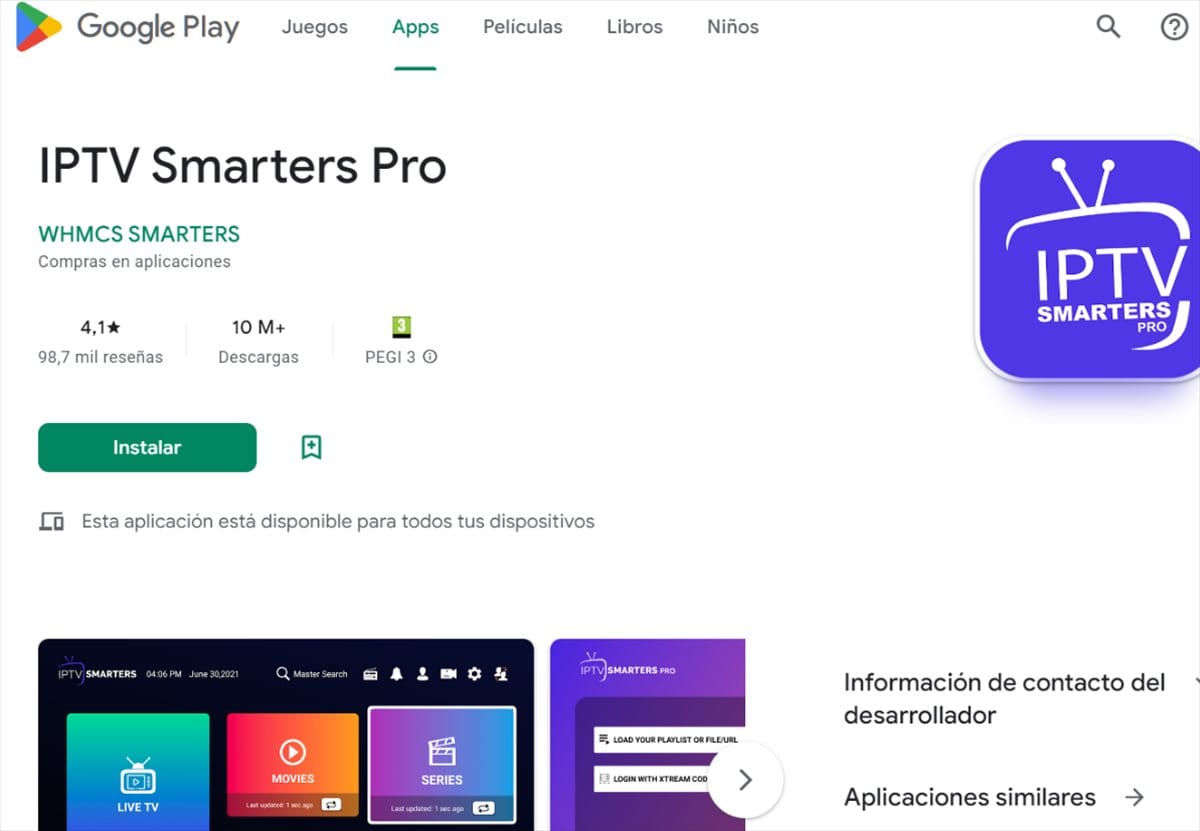
Several excellent players are available right on the store. OTT Navigator is a top-tier, highly customizable choice, while IPTV Smarters Pro is very user-friendly.
To Install OTT Navigator:
Open the Google Play Store on your device.
Use the search function and type “OTT Navigator” OR “IPTV Smarter PRO”.
Select the app by Олег Шибаев (the official developer) and click Install.
Once installed, open it. You are now ready to configure your playlist.
Method 2: The Power User Way – Sideloading an App (e.g., Tivimate)
Some of the best IPTV players, like the renowned Tivimate, are not on the official Play Store due to policy reasons. To install them, you need to “sideload” the app using a file manager.
Step 1: Enable Unknown Sources
You need to grant permission to install apps from outside the Play Store.
Go to Settings > Device Preferences (or System).
Select Security & Restrictions.
Find the option called Unknown Sources.
You will see a list of apps. Find and enable this permission for Downloader or your chosen file manager (like “X-Plore”). This tells the system to allow that specific app to install other applications.
Step 2: Install “Downloader” and Get the IPTV Smarter PRO App
“Downloader” is a simple tool that lets you download files directly to your device.
Open the Google Play Store and search for “Downloader” (by AFTVnews). Install it.
Open the Downloader app. It will ask for permission to access files. Click Allow.
In the URL field, enter the following Code 224877 to get the latest version of IPTV Smarter PRO:
Click Go. The app will download the APK file.
Once downloaded, a prompt will appear. Click Install.
After installation, click Done. You can now find Tivimate in your app drawer.
Step 3: (CRITICAL) Install and Connect a VPN
If you haven’t already, now is the time to install and connect your VPN. Follow the same steps as in Method 1, Step 1.
Step 4: Configure Your IPTV Player with Your Subscription
This final step is the same regardless of which player or method you used. We’ll use Tivimate and OTT Navigator as examples.
Configuring IPTV Smarter Pro
Open IPTV Smarter Pro.
Go to the Settings tab (the gear icon).
Select Playlists > Add Playlist.
You have two options:
For M3U URL: Select “Enter URL,” paste your M3U link, and click Next.
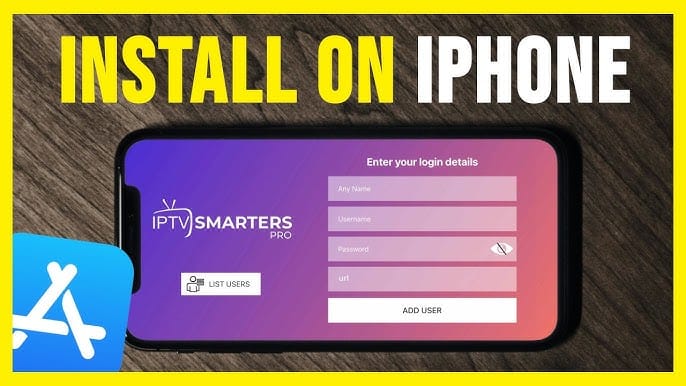
For Xtream Codes: Select “Xtream Codes API,” and enter your username, password, and server URL.
Click Xtream Codes and Write Username , Password and Server Url in Fields That we provided in emails
Configuring OTT Navigator
Open OTT Navigator. It will start with a setup wizard.
Select Add playlist.
Choose the source. “XC Portal / MAC” is for Xtream Codes, and “URL / File” is for an M3U link.
For Xtream Codes:
Enter a Profile Name (e.g., “My IPTV”).
Fill in the Host, Username, and Password from your provider.
Click OK.
For M3U URL:
Select “URL,” paste your full M3U link, and click OK.
The app will fetch your playlist and EPG. You’re all set!
Troubleshooting Common Issues in 2025
“App not installed” error when sideloading: This usually means the APK file is corrupted or incompatible. Try downloading it again or look for a more recent version.
Channels are Buffering:
Check Your Internet: Run a speed test on your device.
Restart Everything: Restart your Android TV device and router.
VPN Server: Try connecting to a different VPN server closer to your location.
Provider Issue: Contact your IPTV provider; the issue may be on their end.
“Playlist Failed to Load” or “Login Failed”:
Double-check your username, password, and URL for typos. They are case-sensitive.
Your subscription may have expired, or the service might be temporarily down.
Final Thoughts
Setting up IPTV on a Google/Android TV Device is an easy process that will open up a world of live television. Whether you opt for the easy-to-use simplicity of an app from the Play Store such as OTT Navigator, or a premium experience of a sideloaded app such as Tivimate, you are a few steps from a powerful entertainment system.
Remember to always use a reputable VPN and a reliable IPTV service. Enjoy your streaming!
Contains information related to marketing campaigns of the user. These are shared with Google AdWords / Google Ads when the Google Ads and Google Analytics accounts are linked together.
90 days
__utma
ID used to identify users and sessions
2 years after last activity
__utmt
Used to monitor number of Google Analytics server requests
10 minutes
__utmb
Used to distinguish new sessions and visits. This cookie is set when the GA.js javascript library is loaded and there is no existing __utmb cookie. The cookie is updated every time data is sent to the Google Analytics server.
30 minutes after last activity
__utmc
Used only with old Urchin versions of Google Analytics and not with GA.js. Was used to distinguish between new sessions and visits at the end of a session.
End of session (browser)
__utmz
Contains information about the traffic source or campaign that directed user to the website. The cookie is set when the GA.js javascript is loaded and updated when data is sent to the Google Anaytics server
6 months after last activity
__utmv
Contains custom information set by the web developer via the _setCustomVar method in Google Analytics. This cookie is updated every time new data is sent to the Google Analytics server.
2 years after last activity
__utmx
Used to determine whether a user is included in an A / B or Multivariate test.
18 months
_ga
ID used to identify users
2 years
_gali
Used by Google Analytics to determine which links on a page are being clicked
30 seconds
_ga_
ID used to identify users
2 years
_gid
ID used to identify users for 24 hours after last activity
24 hours
_gat
Used to monitor number of Google Analytics server requests when using Google Tag Manager
1 minute
Marketing cookies are used to follow visitors to websites. The intention is to show ads that are relevant and engaging to the individual user.
Google Maps is a web mapping service providing satellite imagery, real-time navigation, and location-based information.



 Written by James