Apple’s ecosystem offers a seamless experience for IPTV streaming across your iPhone and Mac. IPTV Smarters provides dedicated apps for both platforms, allowing you to enjoy your favorite live TV channels wherever you go.
This step-by-step guide will walk you through installing and configuring IPTV Smarters on both your iPhone and Mac in 2025.
Important Disclaimer: The legality of an IPTV service depends entirely on the content it provides and its licensing. You are responsible for ensuring that the service you use is legitimate and that you have the rights to stream the content in your region.
What You’ll Need Before You Start
An iPhone/iPad (iOS 13.0 or later) or a Mac (macOS 11.0 or later).
A Stable Internet Connection (Wi-Fi or cellular data).
An Active IPTV Subscription with Xtream Codes API login details (Username, Password, and Server URL) or an M3U playlist link. Click Here TO Buy Now
Apple ID signed in to your device.
Part 1: Setting Up IPTV on iPhone/iPad
Step 1: Download the App from the App Store
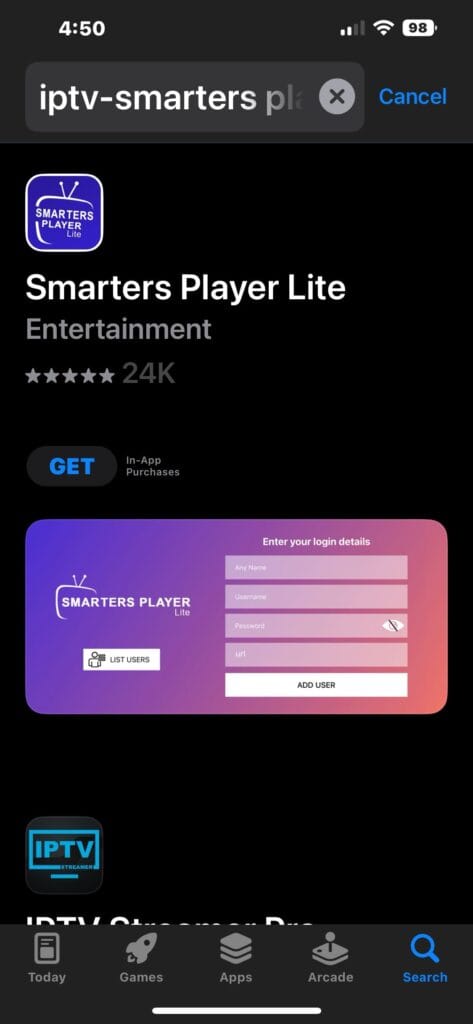
Due to Apple’s App Store policies, the full version of IPTV Smarters is not always available. You need to download “Smarters Player Lite” which is the official, free version that supports IPTV subscriptions.
Open the App Store on your iPhone or iPad.
Tap the Search tab and type “Smarters Player Lite”.
Look for the app by the developer “WHMCS Smarters”.
Tap the Download button (cloud icon) to install it.
For Download IPTV Smarters PRO on IPhone Download Now
Note: The “Lite” version is fully functional for connecting to your IPTV service. It may have ads or in-app purchases to remove them, but all core features are included.
Step 2: Add Your IPTV Subscription
Open App and Click on Xtreme Codes API card on given Options
Open Smarters Player Lite.
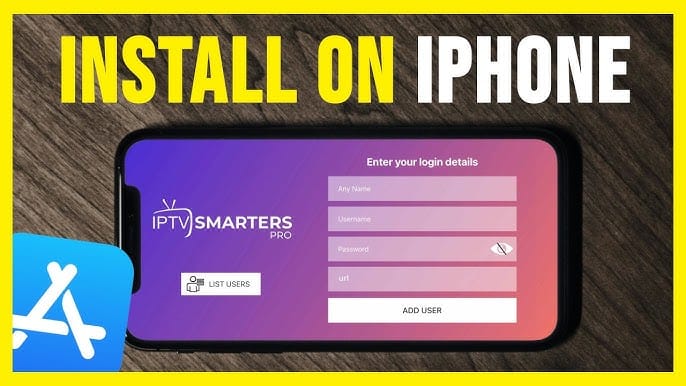
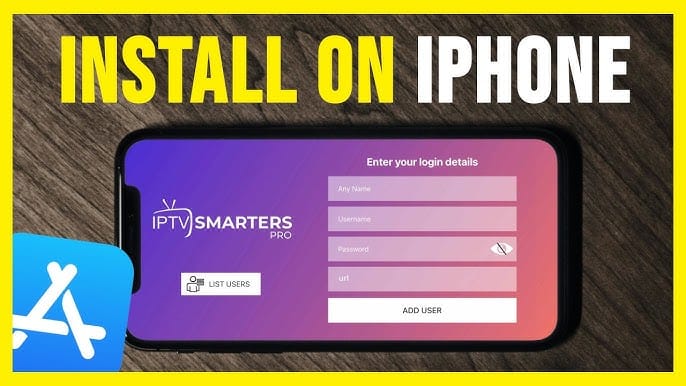
You will see a simple setup screen. Click Add Playlist.
You will be prompted to enter a Playlist Name (e.g., “My TV”).
Now, enter the details provided by your IPTV service:
Select Playlist Type: Choose “XTREAM CODES API”.
URL: Enter the server/portal URL from your provider.
Username: Your assigned username.
Password: Your assigned password.
Double-check all information for typos, then tap Add.
The app will now fetch your playlist and Electronic Program Guide (EPG) data. Once done, you’ll be taken to the main menu.
Step 3: Start Watching on iPhone
The main menu will have panels for Live TV, Movies, Series, and TV Guide. Tap Live TV, select a category, and then tap any channel to start streaming.
The website should automatically detect your Mac and offer a download link. Click it to download the .dmg file.
Once downloaded, open the .dmg file from your Downloads folder.
Drag the IPTV Smarters icon into your Applications folder.
Open your Applications folder and launch IPTV Smarters.
Step 2: Configure Your IPTV Service on Mac
The first time you open the app, you may get a security warning because the app is not from the Mac App Store. Go to System Settings > Privacy & Security and click “Open Anyway” to run it.
You will see the familiar IPTV Smarters interface. Click Add Playlist.
Same User Interface Arrive on Mac Book Like Mobile : Click on Xtreme Codes API in given option after That This Type OF screen login user interface come:
Just like on the App:
Playlist Name: Enter a name for your subscription.
Select Playlist Type: Choose “XTREAM CODES API”.
Fill in the URL, Username, and Password from your provider.
Click Add. Your channels and content will load.
Step 3: Enjoy IPTV on Your Mac
Navigate through the app using your mouse or keyboard. The large screen is perfect for the TV Guide (EPG), and you can easily open multiple windows or use Picture-in-Picture (PiP) mode while working on other tasks.
Pro Tips for Apple Users
AirPlay: You can easily AirPlay content from your iPhone’s Smarters Player Lite to your Apple TV.
Picture-in-Picture (PiP): On both Mac and iPhone, you can enable PiP to watch TV in a floating window while using other apps.
Family Sharing: If you purchase the premium version, check if it supports Family Sharing to share the app with your family group.
Keyboard Shortcuts (Mac): Use spacebar to play/pause and arrow keys to navigate.
Troubleshooting Common Issues
“Invalid Credentials” on iPhone/Mac:
Solution: This is almost always a typo. Ensure your URL, username, and password are 100% correct and case-sensitive.
App Won’t Open on Mac:
Solution: Go to System Settings > Privacy & Security and under “Security,” allow the app to run. You may need to right-click the app and select “Open” the first time.
Channels Buffering:
Solution: Check your internet connection. A wired Ethernet connection on Mac is always better for streaming than Wi-Fi.
“No Data Found”:
Solution: Your subscription may have expired, or the service is temporarily down. Contact your IPTV provider.
Final Thoughts
Setting up IPTV on your Apple devices is a straightforward process. The unified experience of IPTV Smarters across iPhone and Mac makes it easy to pick up where you left off on either device.
Download the apps using the links above, enter your details carefully, and enjoy your cross-platform TV experience!
Contains information related to marketing campaigns of the user. These are shared with Google AdWords / Google Ads when the Google Ads and Google Analytics accounts are linked together.
90 days
__utma
ID used to identify users and sessions
2 years after last activity
__utmt
Used to monitor number of Google Analytics server requests
10 minutes
__utmb
Used to distinguish new sessions and visits. This cookie is set when the GA.js javascript library is loaded and there is no existing __utmb cookie. The cookie is updated every time data is sent to the Google Analytics server.
30 minutes after last activity
__utmc
Used only with old Urchin versions of Google Analytics and not with GA.js. Was used to distinguish between new sessions and visits at the end of a session.
End of session (browser)
__utmz
Contains information about the traffic source or campaign that directed user to the website. The cookie is set when the GA.js javascript is loaded and updated when data is sent to the Google Anaytics server
6 months after last activity
__utmv
Contains custom information set by the web developer via the _setCustomVar method in Google Analytics. This cookie is updated every time new data is sent to the Google Analytics server.
2 years after last activity
__utmx
Used to determine whether a user is included in an A / B or Multivariate test.
18 months
_ga
ID used to identify users
2 years
_gali
Used by Google Analytics to determine which links on a page are being clicked
30 seconds
_ga_
ID used to identify users
2 years
_gid
ID used to identify users for 24 hours after last activity
24 hours
_gat
Used to monitor number of Google Analytics server requests when using Google Tag Manager
1 minute
Marketing cookies are used to follow visitors to websites. The intention is to show ads that are relevant and engaging to the individual user.
Google Maps is a web mapping service providing satellite imagery, real-time navigation, and location-based information.



 Written by James