How to Install XCIPTV APP on Any Device & Set UP IPTV on it
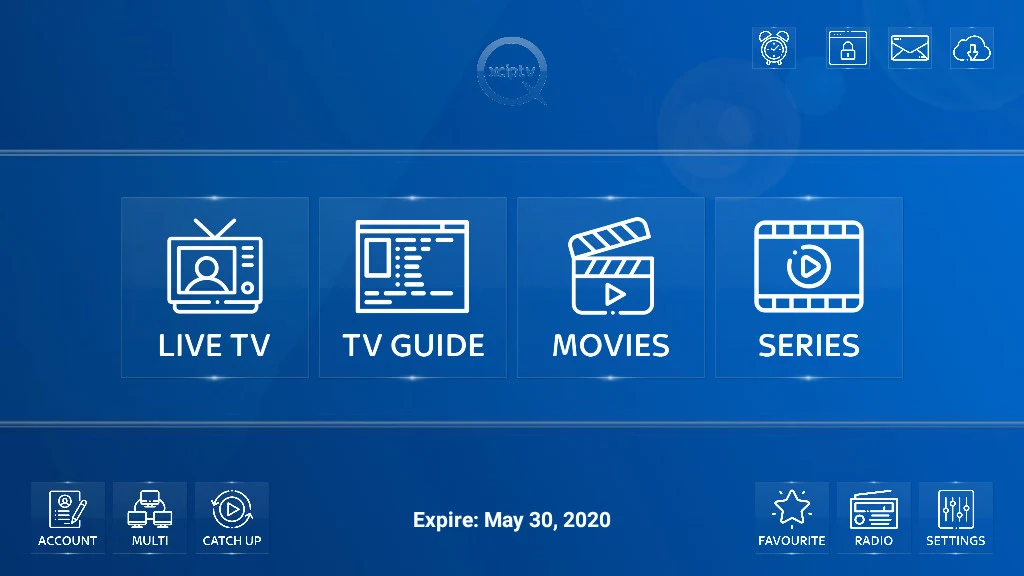
XCIPTV Player is one of the most powerful and modern IPTV players available today. It supports M3U, Xtream Codes API, EPG, Catch-up TV, Multi-screen, DVR & more. In this guide, you will learn how to install XCIPTV Player on every device and how to set up your IPTV subscription inside it.
What Is XCIPTV Player?
XCIPTV Player (also called OTR Player) is a premium-style IPTV player that comes with:
Clean modern interface
Live TV, Movies, and Series sections
EPG support
Multi-screen
Fast channel zapping
Compatibility with almost all IPTV services
Note: XCIPTV is only a player — you still need your IPTV subscription login or M3U URL.
1. How To Install XCIPTV Player on Firestick / Fire TV (2026)
XCIPTV is not available on the Amazon Store, so you must install it using Downloader (sideloading).
Step-by-Step Guide
Step 1: Enable Unknown Sources
Go to Settings
Select My Fire TV
Go to Developer Options
Turn ON Apps From Unknown Sources
Step 2: Install Downloader
Open Search
Type “Downloader”
Install the orange Downloader app
Step 3: Download XCIPTV App
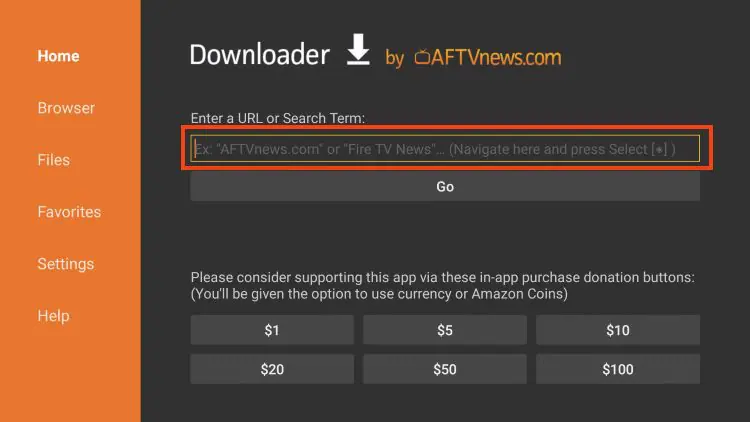
Open Downloader
Enter this Code : 250931
Click Download
When it finishes, click Install
Click Open
XCIPTV is now installed on your Firestick.
2. How To Install XCIPTV Player on Android Smart TV (2026)
XCIPTV is officially available on the Google Play Store for Android TVs.
Steps
Open Google Play Store
Search XCIPTV Player
Select the app
Press Install
Open the app
3. How To Install XCIPTV Player on Android Phones & Tablets
Very simple — it’s directly available in the Play Store.
Steps
Open Google Play Store
Search XCIPTV Player or OTR IPTV Player
Tap Install
Open the app
4. How To Install XCIPTV Player on iPhone / iPad (iOS)
XCIPTV is not available for iOS yet, but you can use WebPlayer or alternative IPTV apps. If you want the iOS alternative, use:
Smarters Player Lite
GSE IPTV
XCIPTV Web Version (if your provider supports it)
5. How To Install XCIPTV Player on Windows PC
Two working methods:
Method 1: Using Windows Subsystem for Android (WSA) – If Available in Your Region
Open Microsoft Store
Install Amazon Appstore
Enable Windows Subsystem for Android
Download XCIPTV APK
Sideload via WSA
Method 2: Using Android Emulator (Recommended)
Works on all PCs.
Install Bluestacks or LD Player
Open the emulator
Sign in to Google Play Store
Search XCIPTV Player
Click Install
XCIPTV now works on your Windows PC.
6. How To Install XCIPTV Player on Mac / macOS
Like Windows, use an emulator.
Steps
Install Bluestacks for Mac
Sign in
Open Play Store
Search XCIPTV
Install the app
How To Set Up IPTV Inside XCIPTV Player
After installing XCIPTV on any device, follow these steps to add your IPTV subscription.
Step 1: Open XCIPTV Player
Launch the app.
Step 2: Enter Your IPTV Login Details
XCIPTV supports:
Option A: Xtream Codes API (Recommended)
You will need:
Username
Password
Server/Portal URL
Enter these details into the fields.
Option B: M3U Playlist URL
If your provider gave you an M3U link:
Select M3U Playlist
Enter the M3U URL
Add EPG URL (optional)
Option C: Local Playlist (File Upload)
You can also upload M3U files.
Step 3: Save & Load Dashboard
Once you enter your details, click Sign In or Load.
XCIPTV will automatically:
Sync channels
Load categories
Load Movies & Series
Download EPG guide
Within a few seconds, your dashboard is ready.
Step 4: Start Streaming
You now get:
Live TV
Movies
Series
Catch-up
Multi-screen
Favorites
Everything works smoothly with fast performance.
Tips for Best Streaming Experience
Use a stable 25+ Mbps internet connection
Connect Firestick/TV to 5GHz WiFi
Clear cache occasionally
Use a premium IPTV provider for better performance
Contains information related to marketing campaigns of the user. These are shared with Google AdWords / Google Ads when the Google Ads and Google Analytics accounts are linked together.
90 days
__utma
ID used to identify users and sessions
2 years after last activity
__utmt
Used to monitor number of Google Analytics server requests
10 minutes
__utmb
Used to distinguish new sessions and visits. This cookie is set when the GA.js javascript library is loaded and there is no existing __utmb cookie. The cookie is updated every time data is sent to the Google Analytics server.
30 minutes after last activity
__utmc
Used only with old Urchin versions of Google Analytics and not with GA.js. Was used to distinguish between new sessions and visits at the end of a session.
End of session (browser)
__utmz
Contains information about the traffic source or campaign that directed user to the website. The cookie is set when the GA.js javascript is loaded and updated when data is sent to the Google Anaytics server
6 months after last activity
__utmv
Contains custom information set by the web developer via the _setCustomVar method in Google Analytics. This cookie is updated every time new data is sent to the Google Analytics server.
2 years after last activity
__utmx
Used to determine whether a user is included in an A / B or Multivariate test.
18 months
_ga
ID used to identify users
2 years
_gali
Used by Google Analytics to determine which links on a page are being clicked
30 seconds
_ga_
ID used to identify users
2 years
_gid
ID used to identify users for 24 hours after last activity
24 hours
_gat
Used to monitor number of Google Analytics server requests when using Google Tag Manager
1 minute
Marketing cookies are used to follow visitors to websites. The intention is to show ads that are relevant and engaging to the individual user.
Google Maps is a web mapping service providing satellite imagery, real-time navigation, and location-based information.



 Written by James